Wednesday, September 10, 2008

http://hipposcraps.blogspot.com

Sorry I haven't posted any more items in awhile. But I have a good reason, I've started a different blog; A better one in my opinion.
Photobucket Image Hosting

I think I will be using that one from now on. So go there. If you like Cute Custom Blogs you will LOVE Hippo Scraps!

http://hipposcraps.blogspot.com

Thursday, August 14, 2008

Be Collection

When President Gordon B. Hinckley gave his 6 be's speech I had just started High School. So needless to say it made a great impact on my life. I have used those be's ever since. The Be Collection consists of four different pieces: a Background Image, a Title Image, a Side Bar Image, and a Bottom Title Image. You may use all or as many pieces as you would like. Whether you are a high school student, a high school student's mother, or just someone like me who remembers and still lives by this wise message this one is the collection for you. As always all these elements are free but please be grateful and leave me a comment to let me know how I am doing. Enjoy and happy blogging!

Background Image:

*Be amazing and use this background image. Look on my side bar under How To Install a Background... for instructions to install. Use the following HTML code:


Title Image:

* Be awesome and use this title image. To use this matching image as your Title Image you need to save it to your computer:

Click Here to Save Image

Once saved on your computer look on my side bar under How to Install a Title image (Header) for more instruction to install.


Side Bar Image:
*These are the original 6 be's. Look on my side bar under How To Install a background... for instruction to install. Use the following HTML code:

Click Here for HTML Code


Bottom Title Image:

*This is a great line from his message. Look on my side bar under How To Install a background... for instruction to install. Use the following HTML code:

Click Here for HTML Code

Tuesday, August 12, 2008

The Kiss Collection

This collection was inspired by Gustav Klimt's "The Kiss." The Kiss Collection consists of seven different pieces: a Background Image, a Title Image, four choices of Side Bar Images, and a Bottom Title Image. You may use all or as many pieces as you would like. The first time I saw this image was under my first roommates bunk in college. It captured me as I hope this collection will capture you. As always all these elements are free but please leave me a comment and let me know how I am doing. Enjoy and happy blogging!

Background Image:

*I loved the beautiful colors and shapes of this painting so I mimicked them with this background. Look on my side bar under How To Install a Background... for instructions to install. Use the following HTML code:


Title Image:

* To use this matching image as your Title Image you need to save it to your computer:

Click Here to Save Image

Once saved on your computer look on my side bar under How to Install a Title image (Header) for more instruction to install.


Side Bar Image:
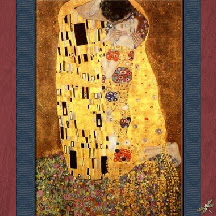
*Here is the painting I have been taking about. "The Kiss" by Gustav Klimt. Look on my side bar under How To Install a background... for instruction to install. Use the following HTML code:

Click Here for HTML Code


Side Bar Image Two:

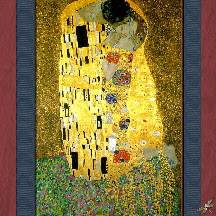
*I found many different colorations of this painting. So I decided to let you choose which one you like best. Here is the second coloration of the painting I have been taking about. "The Kiss" by Gustav Klimt. Look on my side bar under How To Install a background... for instruction to install. Use the following HTML code:

Click Here for HTML Code


Side Bar Image Three:

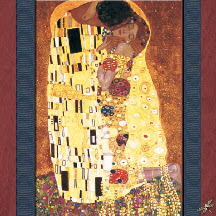
*Here is the third coloration of the painting I have been taking about. "The Kiss" by Gustav Klimt. Look on my side bar under How To Install a background... for instruction to install. Use the following HTML code:

Click Here for HTML Code


Side Bar Image Four:

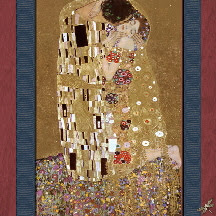
*Here is the fourth coloration of the painting I have been taking about. "The Kiss" by Gustav Klimt. Look on my side bar under How To Install a background... for instruction to install. Use the following HTML code:

Click Here for HTML Code


Bottom Title Image:

*Use this quote to explain the painting. Look on my side bar under How To Install a background... for instruction to install. Use the following HTML code:

Click Here for HTML Code

Monday, August 11, 2008

Explore Collection

I was born and raised in Arizona so naturally it is what comes to mind when I hear the word EXPLORE. I have fond memories of going into the desert with my brothers to explore and find new treasures. So I am very proud of this next collection. The Explore Collection consists of four different pieces: Background Image, Title Image, Side Bar Image, and Bottom Title Image. You may use all or as many pieces as you would like. The world is so beautiful when we take the time to look at it and explore. As always all these elements are free but please leave me a comment and let me know how I am doing. Enjoy and happy blogging!

Background Image:

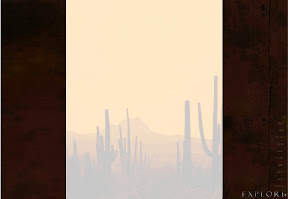
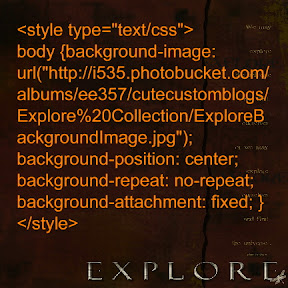
* I love the desert, I love to explore, I love this background. Look on my side bar under How To Install a Background... for instructions to install. Use the following HTML code:


Title Image:

*To use this very simple image as your Title Image you need to save it to your computer:

Click Here to Save Image

Once saved on your computer look on my side bar under How to Install a Title image (Header) for more instruction to install.


Side Bar Image:
*Please explore the possibilities of using this on your blog. Look on my side bar under How To Install a background... for instruction to install. Use the following HTML code:

Click Here for HTML Code


Bottom Title Image:
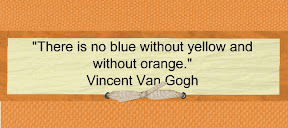
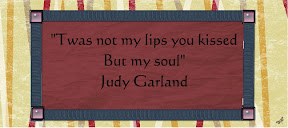
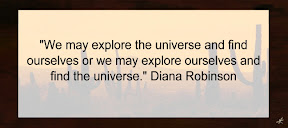
*Share a little inspiration with all who view your blog. Look on my side bar under How To Install a background... for instruction to install. Use the following HTML code:

Click Here for HTML Code

Watermelon Collection

Yes school is starting but that doesn't mean summer is over yet. Enjoy the sun while you can with this cute watermelon collection! As usual the Watermelon Collection consists of four different pieces: Background Image, Title Image, Side Bar Image, and Bottom Title Image. You may use all or as many pieces as you would like. I know bright colors and watermelon always puts a smile on my face, why not share that smile with all who visit your blog. They are free but please leave me a comment and let me know how I am doing. Enjoy and happy blogging!

Background Image:

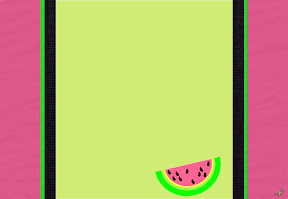
* What can I say, this background image is so sweet. Look on my side bar under How To Install a Background... for instructions to install. Use the following HTML code:


Title Image:

*Spread the fun around with this title image. To use this image as your Title Image you need to save it to your computer:

Click Here to Save Image

Once saved on your computer look on my side bar under How to Install a Title image (Header) for more instruction to install.


Side Bar Image:

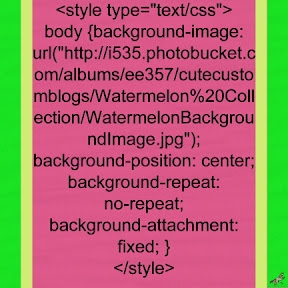
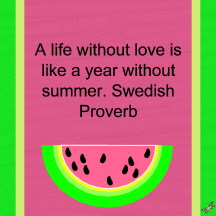
*I just love the quote on this little guy. Look on my side bar under How To Install a background... for instruction to install. Use the following HTML code:

Click Here for HTML Code


Bottom Title Image:

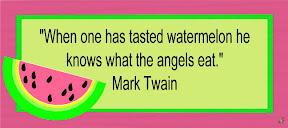
*I bet Mark Twain would use this if he had a blog. Look on my side bar under How To Install a background... for instruction to install. Use the following HTML code:

Click Here for HTML Code

Sunday, August 10, 2008

Simpy Color Collection

Sometimes less is more. That's what inspired this collection of three different colors. The designs are all the same but I changed the colors to give you more options. The Simply Color Collection consists of three different sets: Simply Green, Simply Purple, and Simply Orange. Each set contains a Background Image, Title Image (Header,) Side Bar Image, and Bottom Title Image (Footer.) You may use all or as many pieces as you would like. Why not measure up to the crowd with this cute seasonal collection. They are free but please leave me a comment and let me know how I am doing! Enjoy and happy blogging!

First Set:
SimplyGreen

Background Image:

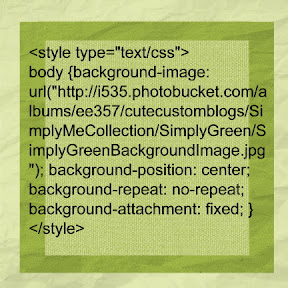
* Want this simply green image as your blog background? Look on my side bar under How To Install a Background... for instructions to install. Use the following HTML code:


Title Image:

*Use this green image as the background for you title. This one is a little different. To use this image as your Title Image:

Click Here to Save Image

Save the image to your computer. Once saved on your computer look on my side bar under How to Install a Title image (Header) for more instruction to install.


Side Bar Image:

*Want this green image too? Look on my side bar under How To Install a background... for instruction to install. Use the following HTML code:

Click Here for HTML Code

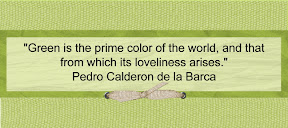
Bottom Title Image:

*Complete your green package with this image. Look on my side bar under How To Install a background... for instruction to install. Use the following HTML code:

Click Here for HTML Code


Second Set:
Simply Purple

Background Image:

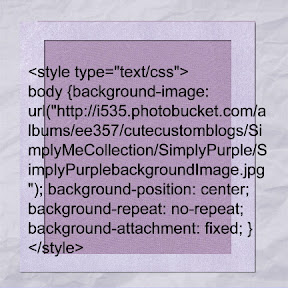
* Want this purple image as your blog background? Look on my side bar under How To Install a Background... for instructions to install. Use the following HTML code:


Title Image:

*Use this purple image as the background for you title. This one is a little different. To use this image as your Title Image:

Click Here to Save Image

Save the image to your computer. Once saved on your computer look on my side bar under How to Install a Title image (Header) for more instruction to install.


Side Bar Image:

*Want this purple image as well? Look on my side bar under How To Install a background... for instruction to install. Use the following HTML code:

Click Here for HTML Code
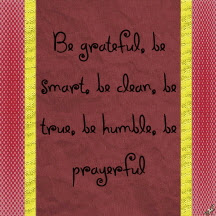

Bottom Title Image:

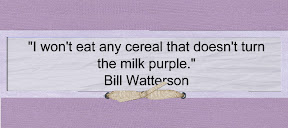
*Complete the purple package with this image. Look on my side bar under How To Install a background... for instruction to install. Use the following HTML code:

Click Here for HTML Code


Third Set:
Simply Orange

Background Image:

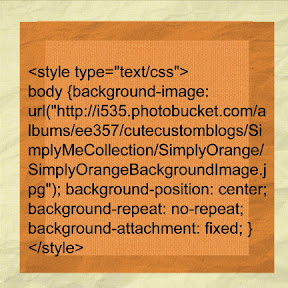
* Want this orange image as your blog background? Look on my side bar under How To Install a Background... for instructions to install. Use the following HTML code:


Title Image:

*Use this orange image as the background for you title. This one is a little different. To use this image as your Title Image:

Click Here to Save Image

Save the image to your computer. Once saved on your computer look on my side bar under How to Install a Title image (Header) for more instruction to install.


Side Bar Image:

*Want this orange image as well? Look on my side bar under How To Install a background... for instruction to install. Use the following HTML code:

Click Here for HTML Code

Bottom Title Image:

*Complete the orange package with this image. Look on my side bar under How To Install a background... for instruction to install. Use the following HTML code:

Click Here for HTML Code
Saturday, August 9, 2008

Education Collection

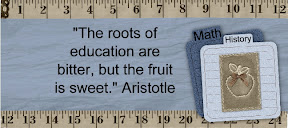
The start of another school season is in the air. That is why I created this as my second collection. The Education collection consists of four different pieces: Background Image, Title Image (Header,) Side Bar Image, and Bottom Title Image (Footer.) You may use all or as many pieces as you would like. Why not measure up to the crowd with this cute seasonal collection. They are free but please leave me a comment and let me know how I am doing! Enjoy and happy blogging!

Background Image:

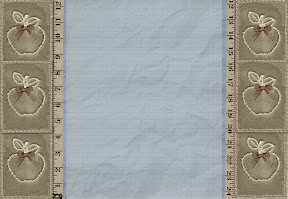
* Want this studious image as your blog background? Look on my side bar under How To Install a Background... for instructions to install. Use the following HTML code:


Title Image:

*Like extra credit? Use this image as the background for you title. This one is a little different. To use this image as your Title Image:

Click Here to Save Image

Save the image to your computer. Once saved on your computer look on my side bar under How to Install a Title image (Header) for more instruction to install.


Side Bar Image:

*School getting you down? Use this image to remind you of the importance of education. Look on my side bar under How To Install a background... for instruction to install. Use the following HTML code:

Click Here for HTML Code

Bottom Title Image:

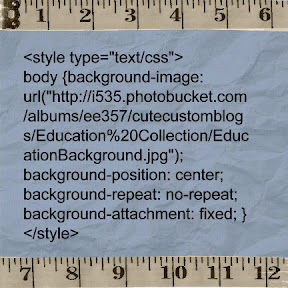
*Complete the package with this image. Look on my side bar under How To Install a background... for instruction to install. Use the following HTML code:

Click Here for HTML Code